
IPTV Installation Guides
Setting up IPTV varies according to your specific hardware and chosen media application. Select your platform below to view detailed walkthroughs, app recommendations, and configuration steps.
Choose Your Device
Click on your streaming hardware below to view illustrated installation instructions tailored to your operating system. For broad hardware compatibility details, visit our supported devices hub.
Smart TV
Samsung (Tizen OS), LG (webOS), Sony Bravia, and Philips smart televisions.
Android TV & Google TV
Chromecast with Google TV, Nvidia Shield Pro, Xiaomi Mi Box, and Android boxes.
Amazon Fire TV
Fire TV Stick (Lite, HD, 4K, 4K Max), Fire TV Cube, and smart TVs with Fire OS.
Apple TV & iOS
Apple TV 4K, Apple TV HD, iPhone, and iPad devices running tvOS/iOS.
Windows & Mac
Windows 11/10 laptops and desktops, macOS laptops, and web browsers.
Need Direct Help?
If your device is not listed or you encounter an issue during configuration, our support team is available 24/7.
Before You Start
Having these five elements prepared in advance ensures your installation will take less than three minutes:
Active IPTV Zoro Subscription or Trial
You need valid service credentials to authenticate your player. If you do not have an active account yet, request our 24-hour free trial or choose an IPTV subscription plan.
Compatible Streaming Device
A supported Smart TV, Amazon Firestick, Android TV box, Apple TV, smartphone, tablet, or desktop computer connected to your home television or monitor.
Internet Connection
For a stable experience, we recommend starting with around 15 Mbps for Full HD and 30 Mbps or more for 4K, although actual requirements vary by stream quality, device, network conditions and Wi-Fi performance.
Compatible IPTV Application
A media player application installed on your device to parse the stream data (e.g. IPTV Smarters Pro, IBO Player, TiviMate, or XCIPTV).
5. Credentials Supplied by IPTV Zoro
Upon trial request or subscription activation, IPTV Zoro provides your login information in two standard formats. Depending on your chosen player app, you can enter either format:
Xtream Codes API Credentials
Consists of three simple fields: Server URL (e.g., http://line.domain:port), Username, and Password. This format loads live channels, VOD movies, and EPG schedules into neat visual categories.
M3U Plus Playlist URL
A comprehensive single URL link containing channel tags, stream references, and electronic program guide endpoints. Ideal for apps like VLC, Nanomid, or older player clients.
Which IPTV App Should I Use?
Because IPTV Zoro supplies standard credentials, you can choose from various recognized media players. Application availability depends on your device, operating system, region, and official app store availability:
IBO Player / IBO Pro
Premier choice for Samsung (Tizen) and LG (webOS) televisions. Fast channel switching, responsive EPG, and simple MAC-based playlist uploading.
Read Smart TV Guide →TiviMate
Widely regarded as the premier player for Android TV and Amazon Firestick. Features a modern TV guide timeline, multi-screen mode, and custom favorites.
Read Android TV Guide →IPTV Smarters Pro
The most widely supported multi-platform client. Operates smoothly on Fire TV, Android TV, iOS, Windows, and macOS.
Read Firestick Guide →Televizo
A lightweight, resource-efficient player for Android devices and older TV boxes with smooth channel scrolling and subtitle support.
Read Android TV Guide →XCIPTV
An intuitive player with dual built-in media players (ExoPlayer & VLC), popular on budget Android boxes and Fire TV models.
Read Android TV Guide →VLC Media Player
Open-source cross-platform desktop application ideal for quick network M3U playlist streaming on Windows and Mac computers.
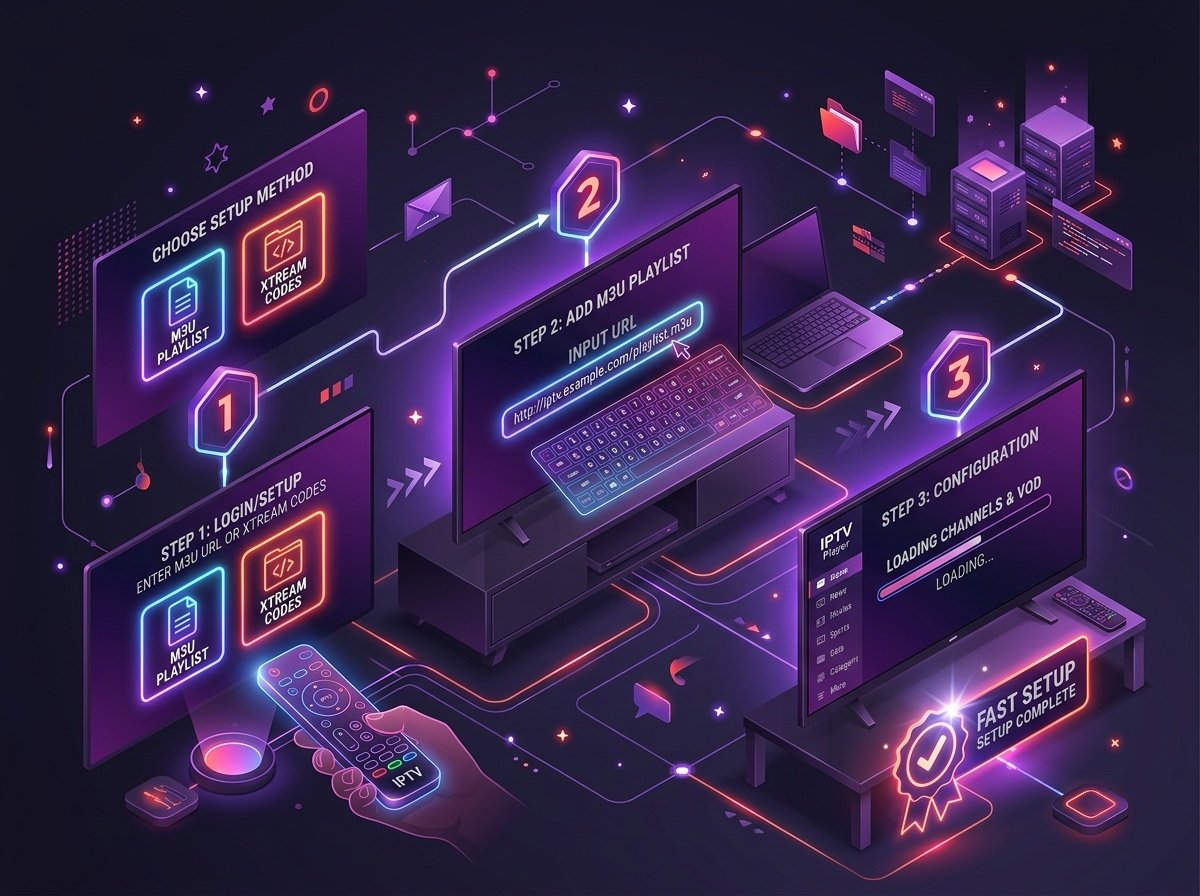
Read PC & Mac Guide →Setup in Three Steps
Regardless of the player or device you choose, configuring your service follows the same core process:
Install Player App
Download a compatible player (such as IPTV Smarters Pro, IBO Player, or TiviMate) from your device's official app store or using the Downloader utility.
Enter Credentials
Open the player, select "Login with Xtream Codes API" (or M3U URL), and carefully input the Server URL, Username, and Password sent to your email.
Save & Watch
Click Add User / Connect. The app will take 30–60 seconds to download your live channel categories, VOD catalog, and EPG data. You are ready to stream!
Having Trouble?
If your stream does not load or you receive an authentication error, perform these quick initial checks before contacting support:
1. Check Internet Connection
Verify your device is connected to the internet and restart your broadband router if speeds are sluggish.
2. Verify Credentials
Check for uppercase vs lowercase typos in your Username and ensure there are no trailing spaces after your Server URL.
3. Supported Application
Ensure your chosen app supports standard Xtream Codes API or M3U Plus formats.
4. Active Subscription/Trial
Confirm that your 24-hour trial period or monthly subscription period has not reached expiration.
5. Device Date & Time
Ensure your device's date and time are set automatically; incorrect clocks can cause SSL handshake errors.
6. Application Restart
Force-close the app from your device settings and re-open it to refresh playlist caches.
Still experiencing configuration issues? Our team is available around the clock to assist you.
Contact 24/7 Technical SupportTest Before You Subscribe
The best way to verify compatibility with your preferred player application, television, and internet router is to test our 24-hour free trial. No credit card or billing information required.
Need a Subscription?
Already tested your app and ready for continuous, buffer-mitigated 4K entertainment? Explore our flexible 1, 3, 6, and 12-month packages with options for 1 to 5 simultaneous screens.
View IPTV Subscription Plans